

What is wireless security? Protect your network now
TL;DR:
- Setting a strong Wi-Fi password alone does not ensure network security; comprehensive wireless protection includes encryption, authentication, and management frame security. Layers of defense, such as WPA3, firmware updates, and network segmentation, are essential to prevent unauthorized access and attacks. Security requires ongoing maintenance and vigilance to effectively protect both homes and small businesses from evolving wireless threats.
Most people believe that setting a strong Wi-Fi password is the end of the job. It feels logical: a password keeps strangers out, so the network should be safe. But that thinking leaves your home or small business exposed to attack paths that have nothing to do with your password. NIST’s wireless security guidance confirms that wireless security covers encryption, authentication, and network integrity together, not just the key you type to get online. This article walks you through what wireless security actually means, where it breaks down in practice, and the concrete steps you can take today to close the gaps.
Table of Contents
- Understanding wireless security: Beyond passwords
- How wireless security works: Layered defense explained
- Common threats and mistakes: What most people miss
- Practical steps: Securing your wireless network today
- Our take: The real-world challenge of wireless security
- How Safes & Security Direct supports your wireless security
- Frequently asked questions
Key Takeaways
| Point | Details |
|---|---|
| Not just passwords | Wireless security involves encryption, authentication, and network management, not just choosing a Wi-Fi password. |
| Layered defense is key | Multiple protection layers including device updates and management traffic security are crucial for real safety. |
| Common mistakes risk safety | Leaving default settings or skipping updates exposes your network to attackers despite strong encryption. |
| Simple steps make a difference | Upgrading security settings, updating firmware, and managing device access greatly improve wireless security. |
| Ongoing maintenance required | Regular checks and updates keep your wireless network secure as threats evolve. |
Understanding wireless security: Beyond passwords
Now that you know protecting a network is more than setting a password, let’s break down exactly what wireless security means for your property.
Wireless security is the full set of controls that protect data, devices, and access across any Wi-Fi network. NIST defines it as addressing encryption, authentication, and network integrity to defend against unauthorized access and attacks over the air. That’s three distinct layers working together, and weakening any one of them creates an opening for attackers.
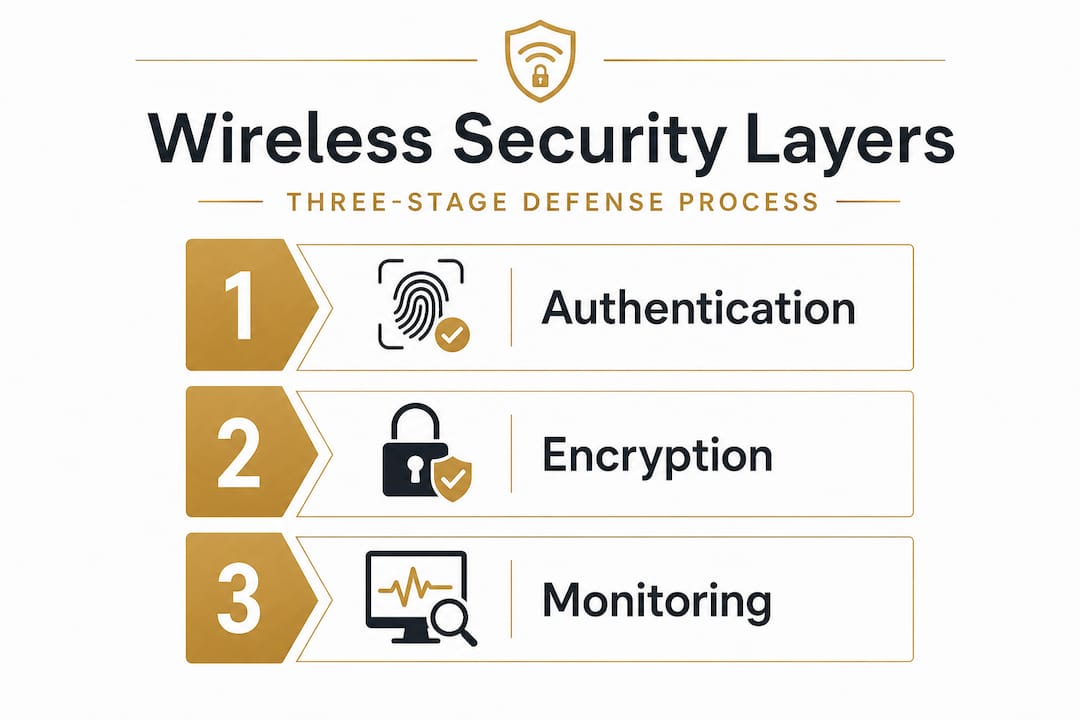
Think of it this way: your Wi-Fi password is like a lock on your front door. Encryption is the reinforced steel frame around that door. Authentication is the process of confirming who is actually knocking. And network integrity means that even after someone is inside, the information being passed around can’t be tampered with. Removing any one of those elements leaves your property vulnerable, even if the door itself looks fine.
The threats go deeper than people realize. Even if your password is unbreakable, attackers can exploit vulnerabilities in the management frames that keep your network running smoothly. Management frames are the behind-the-scenes traffic that devices and routers use to communicate status, connect, and disconnect. Without protection, these frames can be spoofed or manipulated. Wireless Broadband Alliance guidance confirms that complete wireless security must include integrity and resilience for management traffic, not just data encryption.
Knowing the full landscape of these threats is the first step. Here is what wireless security actually protects against:
- Eavesdropping: Attackers intercept unencrypted data traveling between your devices and the router.
- Unauthorized access: Strangers piggyback on your network to use your bandwidth or reach your devices.
- Deauthentication attacks: Fake management frames force your devices to disconnect and reconnect, creating windows for interception.
- Evil twin attacks: A rogue hotspot mimics your network’s name to steal credentials when devices connect.
- Device vulnerabilities: Outdated smart home devices with unpatched firmware become entry points into your broader network.
Wireless security isn’t a feature you turn on once. It’s a living system that needs to be maintained, updated, and reviewed regularly as your devices and threats evolve.
Getting comfortable with these home security terms is essential because the language shapes how you think about protection. The more clearly you understand the threat, the more confidently you can act.
How wireless security works: Layered defense explained
With those concepts in mind, let’s see how wireless security actually defends your network in three clear layers.
Wireless Broadband Alliance guidance describes wireless security as operating across three distinct functions: preventing unauthorized association through authentication and access control, protecting the confidentiality and integrity of data traffic through modern encryption protocols, and protecting management frames along the full network infrastructure path. Each layer reinforces the others, and a strong defense blocks outsiders at multiple points.
Here’s how those layers break down in practical terms:
| Layer | What it does | Example in practice |
|---|---|---|
| Authentication | Confirms identity before granting access | WPA3 personal or enterprise login |
| Encryption | Scrambles data so only intended recipients can read it | AES-256 encryption on Wi-Fi traffic |
| Management frame protection | Secures router-to-device coordination traffic | Protected Management Frames (PMF) enabled |
| Access control | Limits which devices can join the network | MAC address filtering or network segmentation |
| Monitoring | Detects unusual activity in real time | Wireless Intrusion Prevention Systems (WIPS) |
A solid security setup workflow addresses all five of these areas in sequence, not as isolated tasks. Skipping any one of them is like building a fence with a missing panel.
Follow this sequence when setting up or reviewing your wireless security:
- Enable WPA3 encryption on your router if your hardware supports it. If not, use WPA2 with AES (not TKIP).
- Change the router admin username and password from the factory defaults. This step alone blocks a wide range of automated attacks.
- Enable Protected Management Frames in your router’s advanced wireless settings.
- Disable remote management unless you have a specific operational need for it.
- Segment your network by creating separate SSIDs for trusted devices, guest users, and smart home devices.
- Update your router firmware and repeat this process every few months.
Pro Tip: Log into your router’s admin panel right now and look for the firmware update section. Routers from major manufacturers receive patches regularly, and most people never install them. An unpatched router is a known vulnerability sitting in plain sight inside your home.
Common threats and mistakes: What most people miss

But what does this look like in real life? Here’s where most people’s best efforts actually break down.
The biggest mistake homeowners and small businesses make is assuming that enabling Wi-Fi encryption is enough. CISA guidance is direct on this point: encrypting Wi-Fi data is necessary but not sufficient. Management frames and the broader router configuration, including exposed admin interfaces and enabled remote access features, can create serious attack paths even when the main encryption protocol is active.
Put simply, your Wi-Fi password could be a 30-character random string and you’d still be exposed if your router’s admin panel is accessible from the internet using default credentials. Many routers ship with remote management turned on by default, and attackers scan for these open ports constantly.
CNET’s research into home network attacks highlights how ongoing telemetry from network security companies shows a consistent pattern of automated attacks targeting home routers and connected devices. These attacks don’t require a sophisticated adversary. They’re often automated scripts running continuously, looking for easy targets.
Here are the most common mistakes that leave networks exposed:
- Leaving remote management enabled: This opens your router’s admin panel to the wider internet. Most homes have no reason to need this.
- Never updating firmware: Manufacturers patch known vulnerabilities regularly. Skipping updates means attackers can use publicly documented exploits.
- Using the same network for all devices: Smart TVs, baby monitors, and security cameras often have weaker security than laptops and phones. Mixing them on one network lets a compromised device reach everything else.
- Keeping default admin credentials: Factory-set usernames and passwords are publicly listed online. Changing them takes under two minutes.
- Ignoring rogue access points: In small business settings, an employee might connect a personal wireless router to the office network, creating an unmonitored entry point.
The threat landscape for property security has shifted significantly. It’s no longer just physical. A compromised wireless network can give an attacker visibility into your security cameras, smart locks, and alarm systems. That makes wireless hardening a critical part of total property protection, not just a tech concern.
Pro Tip: Set up a separate guest network specifically for smart home devices like thermostats, cameras, and voice assistants. These devices often can’t receive security updates as reliably as computers, so keeping them on a dedicated network limits the damage if one gets compromised.
Practical steps: Securing your wireless network today
So how do you stay ahead of these evolving threats? Here’s what you can do right now.
CNET’s expert guidance on home wireless security consistently recommends a combination of enabling modern encryption, using strong credentials, and hardening the router through firmware updates, disabling remote management, and monitoring device access. These aren’t advanced techniques. They’re foundational steps that most households simply haven’t taken.
For small businesses handling customer data or operating security cameras and access control systems, the bar is higher. CISA recommends implementing stronger authentication methods and deploying Wireless Intrusion Prevention Systems (WIPS) for environments where wireless access security is critical. A WIPS monitors your airspace in real time, detecting and blocking rogue access points, deauthentication attacks, and unauthorized connections before they cause damage.
Here’s your action list, ordered by impact:
- Switch to WPA3. Check your router settings now. If WPA3 is available, enable it. It provides stronger authentication and makes brute-force attacks significantly harder compared to WPA2.
- Change your router admin credentials immediately. Use a unique username and a password that doesn’t appear anywhere else. Store it in a password manager.
- Disable remote management. Go to your router’s admin panel, find the remote access or WAN management setting, and turn it off.
- Update your firmware today, then set a calendar reminder to check again in 90 days.
- Create a guest network for visitors and all smart home devices. Give it a different password that you can change without affecting your main devices.
- Audit your connected devices by checking the device list in your router’s admin panel. Remove anything you don’t recognize.
- Enable Protected Management Frames if your router supports it. This closes off a major class of management-layer attacks.
Stat callout: Security researchers consistently find that a large proportion of home routers are running outdated firmware with unpatched vulnerabilities. Most were never updated after initial setup.
Applying these security best practices doesn’t require technical expertise. It requires setting aside 30 to 60 minutes to go through your router settings carefully. Pair these steps with smart home security practices for your connected devices and you’ll have a genuinely hardened home network that the vast majority of attackers will move past in search of easier targets.
Our take: The real-world challenge of wireless security
Taking all this into account, let’s offer a candid reality check based on what actually works for everyday homes and small businesses.
The standard advice you hear, “use a strong password and you’ll be fine,” is years out of date. Today’s attackers aren’t sitting outside your house manually guessing passwords. They’re running automated tools that probe for firmware vulnerabilities, default credentials, and open management interfaces. The password isn’t even the front door anymore for many of these attacks.
What we’ve seen consistently is that the hardest part of wireless security isn’t the initial setup. It’s the ongoing maintenance. Routers get set up once and forgotten for years. Smart home devices multiply faster than anyone can track them. Each new device that joins your network is a potential entry point, and many of these devices, from budget security cameras to smart plugs, receive infrequent or no security updates from their manufacturers.
The uncomfortable truth is that no single setting change makes your network permanently secure. Security is a process, not a destination. The good news is that practical focus beats technical perfection every time. You don’t need to implement enterprise-grade authentication to be meaningfully safer than the average home network. You just need to keep firmware current, segment your devices, change default credentials, and repeat.
For small businesses in particular, this matters even more. A compromised network isn’t just a technical problem. It can expose customer data, disable your surveillance system at a critical moment, or give an attacker access to your point of sale system. Thinking about improving your home or business security as a continuous investment, rather than a one-time task, is the mindset shift that makes the biggest difference in practice.
Keep it simple, stay consistent, and review your setup every quarter. That discipline separates the properties that stay secure from the ones that become easy targets.
How Safes & Security Direct supports your wireless security
Ready to strengthen your wireless security? Here’s how we can help.
At Safes & Security Direct, we know that protecting your property means thinking about every layer of your security, from the physical to the digital. Whether you’re a homeowner looking to harden your home network or a small business owner needing guidance on wireless surveillance and access control, we have the resources and products to support your next step.

Our team specializes in professional-grade security solutions that complement a properly secured wireless environment. From advanced surveillance cameras that integrate with your hardened network to physical security products that work alongside your digital defenses, we help you build a complete protection strategy. Browse our full product range or reach out to our security experts for personalized guidance on where to start and what to prioritize for your specific setup.
Frequently asked questions
Is wireless security just about Wi-Fi encryption?
No, wireless security covers far more than encryption. Wi-Fi security includes management traffic protection and layered defenses across authentication, network integrity, and device access control.
What is the strongest Wi-Fi security setting for my router?
WPA3 is currently the strongest available setting for most homes and small offices. CISA recommends WPA3-Enterprise along with wireless intrusion prevention for sensitive environments.
Can using a guest network really improve wireless security?
Yes, significantly. Guest networks isolate untrusted devices so that a compromised smart home gadget or visitor device can’t reach your primary computers or data. CNET’s guidance specifically recommends guest networks as a key hardening step.
How often should I update my wireless router’s firmware?
Check for updates at least every 90 days and apply critical patches immediately when they’re released. Keeping routers and devices updated is one of the most impactful security habits you can build.
What is a wireless intrusion prevention system (WIPS) and do I need one?
A WIPS monitors your wireless environment and blocks unauthorized access points and anomalous activity in real time. CISA recommends deploying WIPS for sensitive business and critical infrastructure environments rather than standard homes.
Recommended
- Home security setup workflow for maximum protection – Safes and Security Direct
- Home security terminology explained: a clear guide – Safes and Security Direct
- Wired vs Wireless Security Cameras: Which is Best? – Safes and Security Direct
- Best Wired Security Camera System: Pros & Cons – Safes and Security Direct